


17
February
February
How to Download Mojoomla Products After Purchase?
Buying and downloading products from Mojoomla is simple. Follow These easy Steps to Download your ZIP file.
Here is a complete Guide to help you.
Method 1: Download from Your Mojoomla Account
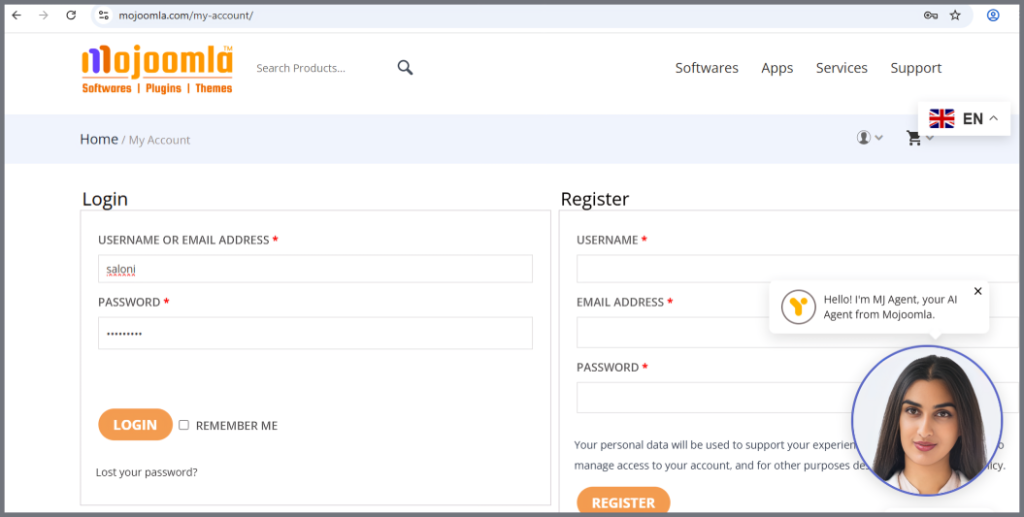
Step 1: Login to Your Mojoomla Account
- Go to the mojoomla.com website.
- Click Login and enter your Username and Password.
- You are now logged into your account
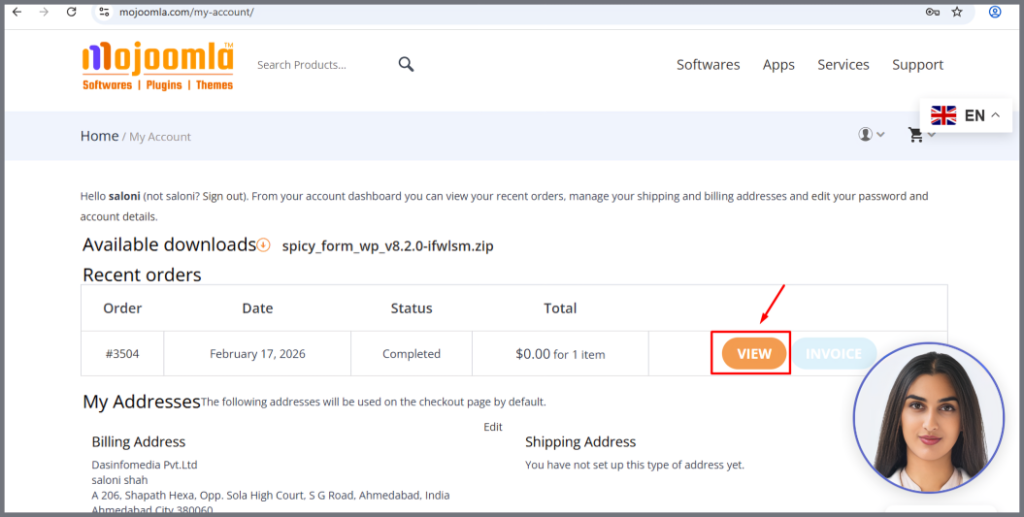
Step 2: Go to My Account from Profile Dropdown
- The Recent Orders section shows your orders.
- Click View.
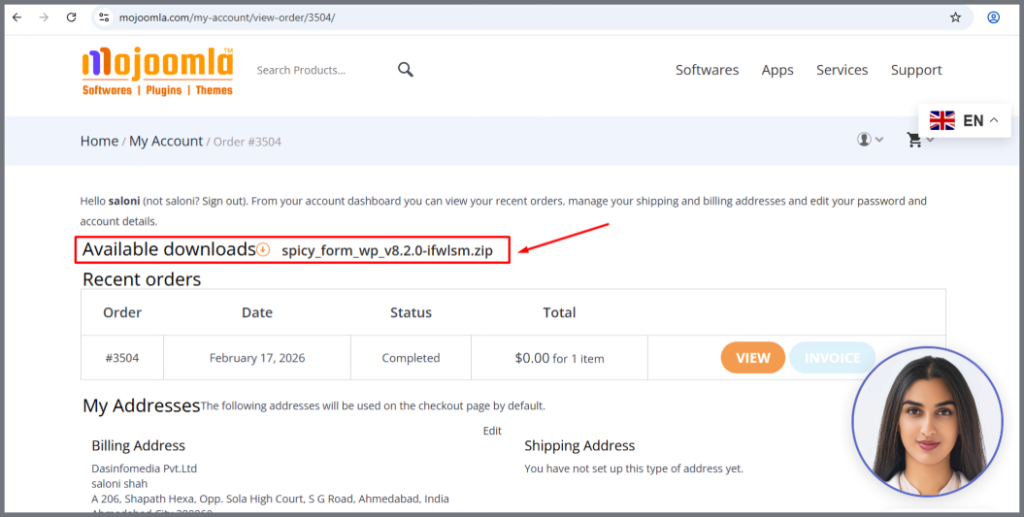
Step 3: Download Product
You can see the “Available Downloads” button – Download the ZIP file now.
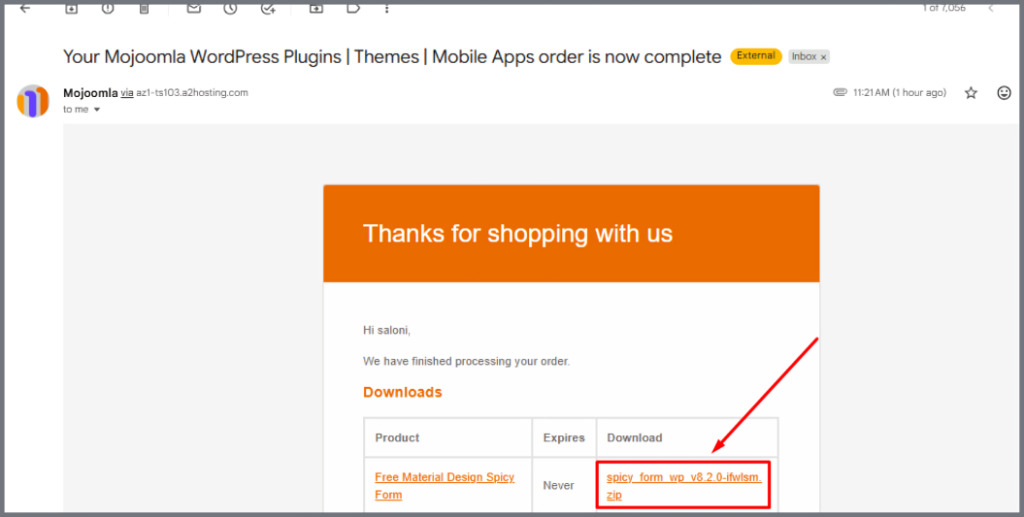
Method 2: Download from Email:
After your purchase, you will receive an email with the subject:
“Your Mojoomla WordPress Plugins | Themes | Mobile Apps order is now complete.”
Inside the email:
- You will see your order details
- A download link will be available
Click the link and download your ZIP file. [ Make sure you are logged In on mojoomla.com website]
Final Step: Unzip and SetUp
After downloading:
- Go to your computer’s download folder
- Right-click the ZIP file
- Click Extract / Unzip
- Follow the setup instructions to install your product
Now your Mojoomla product is ready to use.